See here: How to add an admin user to your WordPress using Virtualmin
Or the generic instructions here: https://wp-staging.com/how-to-create-an-admin-user-with-mysql-in-wordpress/

Quality cloud hosting and custom servers you can depend on
See here: How to add an admin user to your WordPress using Virtualmin
Or the generic instructions here: https://wp-staging.com/how-to-create-an-admin-user-with-mysql-in-wordpress/
We get asked this question a lot, especially by the people who have already been accustomed to using a more familiar control panel, such as cPanel. Why did we settle on using Virtualmin as out web admin panel of choice?
The short answer is that we believe that Virtualmin gives more control. We love to have better control of our systems, and we think our clients deserve to have the ability to control the fine details of their hosted services.
Most web admin panels try to simplify things too much. So much that an advanced client would really feel crippled when they look for some setting and not find it.
We admit that the learning curve of Virtualmin might be a bit steep for a new comer to the web hosting world, this is why we are always happy to assist our clients in configuring their servers and websites while showing them how it is done, so they can do it later on their own, if they so desire.
We also post new tutorials on this site whenever we feel there’s a need for one. See the How To posts: /post/category/howto.
If you’ve lost access to your WordPress admin account, you can reset their password, or create a new user with admin privileges. Here are the instructions to add an admin user using Virtualmin.
Here are some quick instructions (for the detailed instructions see below):
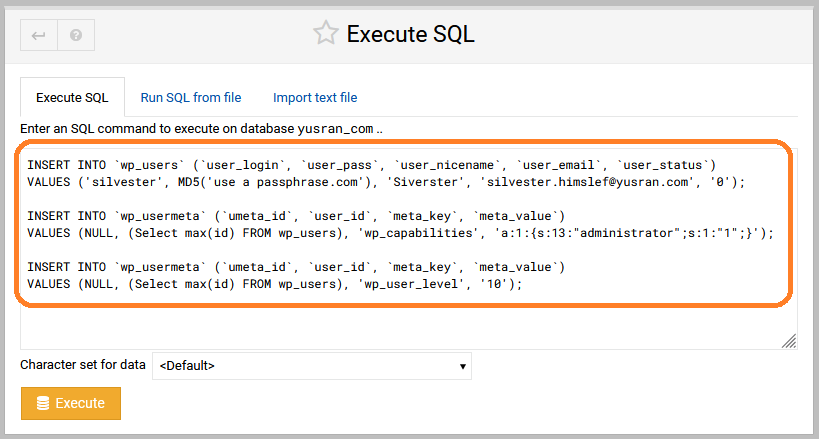
Run the follwing SQL script under the desired site’s database. Make sure to replace the distinguished text with the desired values, and keep the quotes exactly as shown here.
INSERT INTO `wp_users` (`user_login`, `user_pass`, `user_nicename`, `user_email`, `user_status`)
VALUES ('SomeNewUserName', MD5('SomeLongPassPhrase'), 'DisplayNameForUser', 'EmailAddressForNewUser', '0');
INSERT INTO `wp_usermeta` (`umeta_id`, `user_id`, `meta_key`, `meta_value`)
VALUES (NULL, (Select max(id) FROM wp_users), 'wp_capabilities', 'a:1:{s:13:"administrator";s:1:"1";}');INSERT INTO `wp_usermeta` (`umeta_id`, `user_id`, `meta_key`, `meta_value`)
VALUES (NULL, (Select max(id) FROM wp_users), 'wp_user_level', '10');SET @user_id = (SELECT id FROM wp_users WHERE user_login = 'SomeExistingUserName');
DELETE FROM wp_users WHERE id = @user_id;
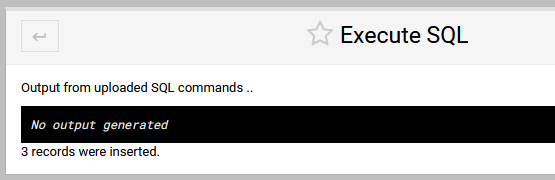
DELETE FROM wp_usermeta WHERE user_id = @user_id;Using the SQL code execution service in Virtualmin is buggy (as of 2023-07-30). The code must be run from a file.
wp-config.php, and view its contents to see what’s the database name.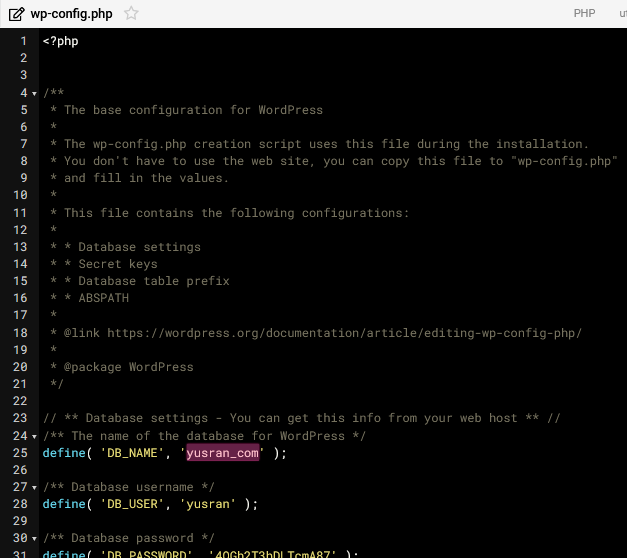
Manage next to the database you found in the previous step.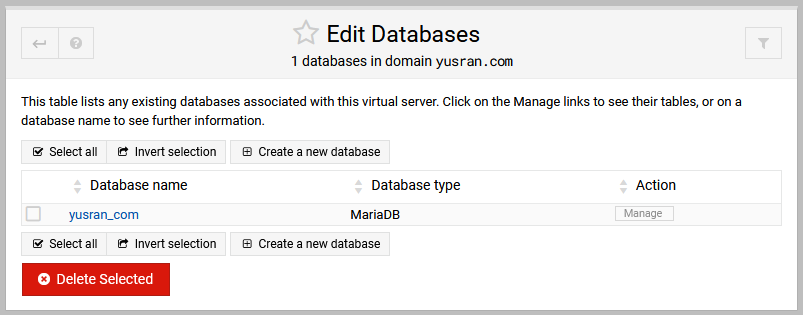
Excute SQL.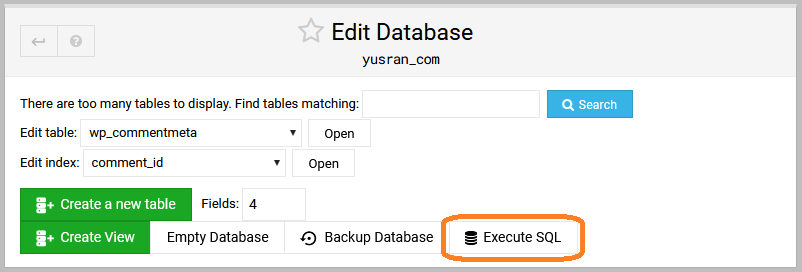
Run SQL from file, and upload a text file that contains your query.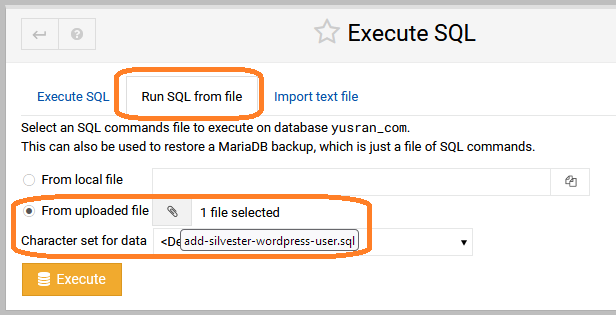
If you’ve lost access to your domain (or subdomain) for whatever reason, and now you want to migrate your site to a new address, the process is unfortunately not very straight forward, and this is why we have this guide for you.
Please make sure to perform these steps in the order they are listed here.
The first step is to add your DNS records to the new domain. Typically you only need to add CNAME records for www and sftp pointing to the hostname of your hosting server.
If you have sites hosted on other subdomains, don’t forget to add them as well.
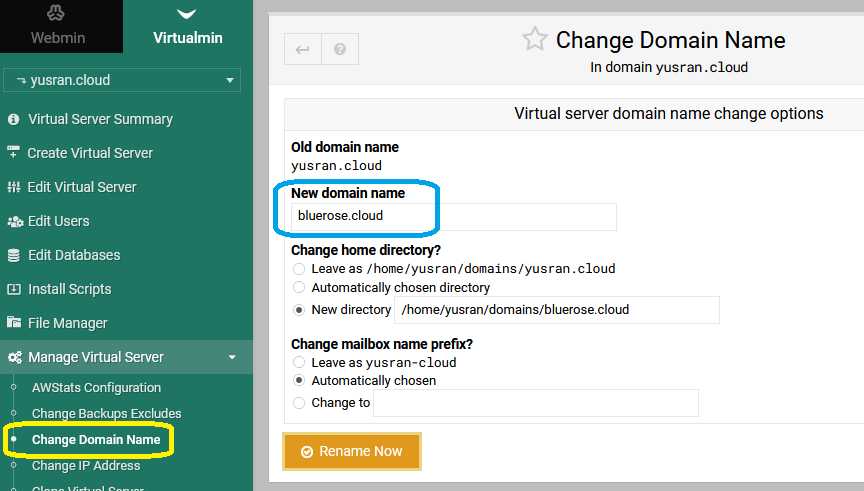
You need to tell the web server that your domain name has changed, so that it will start serving your site on the new domain.
This can be done from your Virtualmin administration panel, if you have the access to do it. If you cannot see this option, contact our support team and they will be happy to have this done for you.
This is how it would look like if you have access to this option:
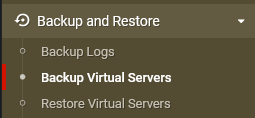
Take a backup of your site and settings before you do tests, just in case…
At the time of this writing, WordPress will not allow you to access the management dashboard using the new domain name. What will happen is that your browser will keep getting redirected to the old domain as you try to access the dashboard from an address like http://example.com/wp-admin.
To fix this, you have first to add a couple of lines to wp-config.php. You can edit this file using Virtualmin’s file manager. Locate the file, right-click it and select Edit. Then add these two lines:
define('WP_HOME','http://example.com');
define('WP_SITEURL','http://example.com');
Of course, replace example.com with your new domain.
Once saved, you can now access the dashboard from an address like http://example.com/wp-admin.
Go to Settings -> General and update the site’s address fields.
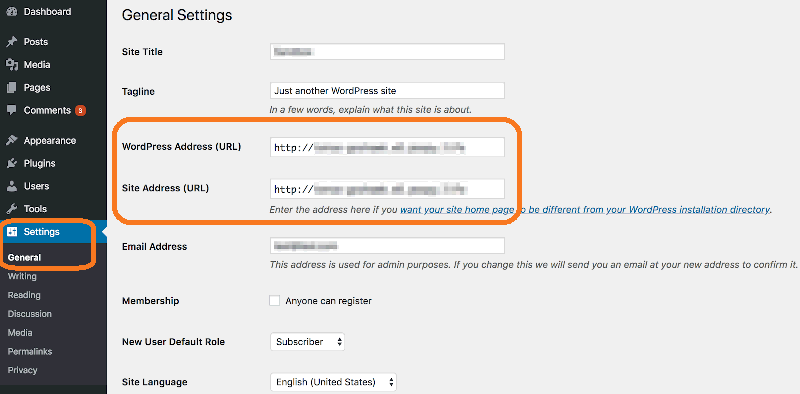
Now you can revert the change made in wp-config.php.
Alternatively, you can update the site’s URL directly in the database via Virtualmin’s database management tool:
wp_options table and click it.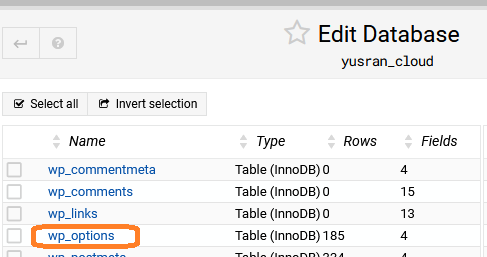
View Data button.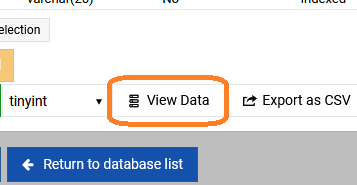
siteurl and home rows and change their option_value to the new domain name.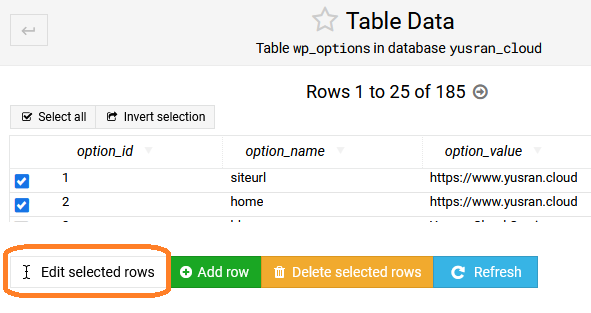
You face now the issue of having resources embedded on the sites’ pages still linked to the old domain. If you visit your site, you’ll see that images, videos, CSS styles, etc, will not be visible at the moment because WordPress usually stores the full URL of the resources, including the domain, in the database.
If you have the necessary expertise, you can use database queries to find and update all URLs in the database.
Alternatively, use a plugin like “Better Search & Replace” to replace the old domain and update permalinks and other URLs. Disclaimer: This plug-in was recommended by a search engine. Feel free to browse the WordPress Plugin catalogue for many other options.
We have been managing online servers since the year 2000. We have an excellent record in security with zero breaches. We have the experience and the right personnel.
When you rent a managed server from us (physical or virtual), we take care of it just like one of our own, with a bundle of measures that keep the servers fortified covering a spectrum of aspects.
The list of these measure can be long, so here are some of them:
There are also measures to ensure the continuous availability of the server, in case something goes wrong. This is known in the industry as High Availability (HA), and we offer it according to your requirements (e.g. and uptime percentage, like 99.9%) versus the cost.


We offer domain registration, supported with powerful tools:
Additional paid service can be provided: